

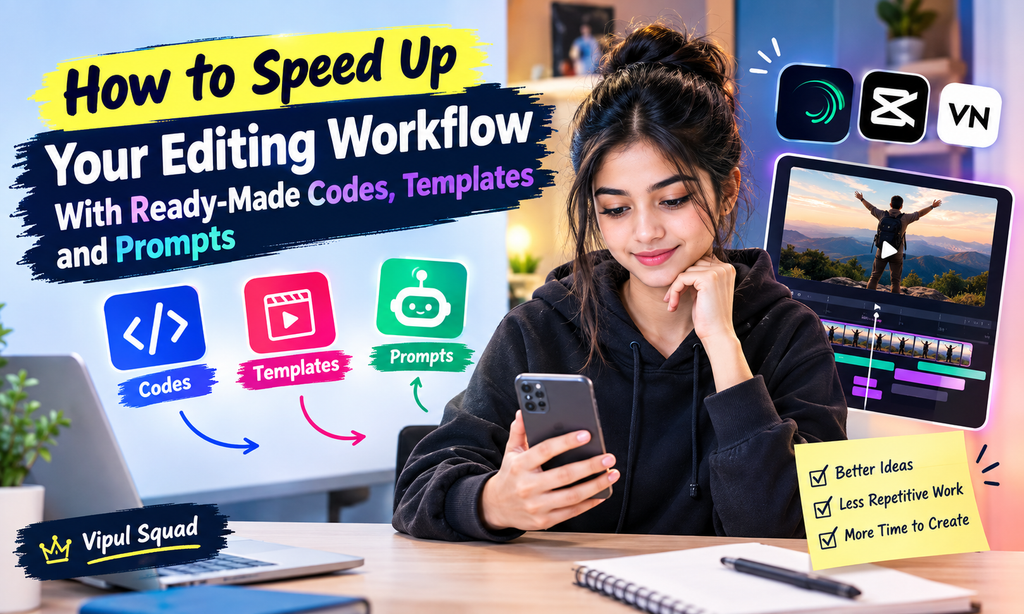
How to Speed Up Your Editing Workflow With Ready-Made Codes, Templates and Prompts
Editing short-form videos can take much longer than expected. The actual cutting may be simple, but finding ideas, choosing assets, timing clips, creating effects, writing text, and preparing the final video can quickly turn one small project into a long task.
For creators who post regularly, the solution is not always editing faster with more complicated techniques. A better approach is to build a repeatable workflow and use ready-made resources wherever they can save unnecessary work.
Ready-made codes, templates, and AI prompts can help reduce the amount of work you do from scratch. You can use them to get a starting point, then add your own text, timing, colors, effects, and creative style before publishing.
Where Editing Time Really Goes
Before improving your workflow, it helps to understand where most of your editing time is actually spent.
1. Finding an Idea
Every video starts with an idea. You may need to decide what the video is about, what clips you need, what message you want to deliver, and how the first few seconds should work.
For creators posting frequently, coming up with fresh ideas can sometimes take longer than the actual editing.
2. Collecting Assets
The next step is finding videos, images, music, fonts, icons, screenshots, or other visual elements. Searching for each asset individually can interrupt your creative process.
Having commonly used assets organized in advance makes this part much easier.
3. Building the Timeline
After collecting everything, you need to place the clips in the correct order. You may also need to trim footage, adjust transitions, add text, and match the visuals with the audio.
This is where a large amount of repetitive work can appear.
4. Adding Effects and Timing
Effects can make a short video more engaging, but creating every movement and transition manually takes time. The same is true for text animations and other repeated elements.
This is one reason templates can be useful. Instead of starting with an empty project every time, you can begin with an existing structure and customize it.
5. Final Checks and Export
Before finishing, you still need to check the text, timing, audio levels, visual consistency, and overall flow.
A repeatable checklist can prevent small mistakes while making the final stage more predictable.
The Three Time-Savers Every Short-Form Creator Should Know
There are several ways to reduce repetitive editing work. Three particularly useful options are ready-made VN template codes, CapCut templates, and AI prompts.
Ready-Made VN Template Codes
Ready-made VN template codes are designed to give creators a starting point for certain video editing projects.
Instead of building every part of a project from an empty timeline, a creator can use a suitable ready-made resource and then make changes according to the needs of the video.
The exact way these resources work can depend on the app and the specific template. For that reason, it is better to think of a code as a shortcut to a prepared editing idea rather than something that automatically creates a finished video.
The biggest benefit is the starting point. You can spend less time recreating a structure that has already been prepared and more time making the content feel personal.
CapCut Templates
CapCut templates can also provide a useful starting structure for short-form videos. They are particularly helpful when you want a specific editing style without manually creating every transition or arrangement.
A template can give you a visual direction, but you should still adjust the content to match your own purpose.
Change the footage, text, pacing, and other suitable elements so the final result fits your page rather than looking like a simple copy of a template.
AI Prompts for Ideas, Scripts and Visuals
AI prompts can save time before you even open your editing app.
Instead of staring at a blank document and trying to develop an idea from scratch, you can use a well-written prompt to generate possible video concepts, hooks, short scripts, scene ideas, captions, or visual directions.
For example, a creator making short videos about fitness could use a prompt such as:
Give me 10 short-form video ideas about beginner fitness. Each idea should have a strong opening hook, three main points, and a simple ending.
You can then choose one idea and turn it into a practical editing plan.
This approach does not mean accepting every generated suggestion without changes. The goal is to reduce the time spent brainstorming while keeping your own judgment and creative direction.
Creators looking for codes, templates, and prompts in one place can also explore Vipul Squad as part of their resource workflow.
A Step-by-Step Faster Editing Workflow
The real benefit comes from combining these resources rather than treating them as separate tools.
Here is a simple workflow you can repeat for different short-form projects.
Step 1: Start With the Idea
First, decide what the video needs to communicate.
If you are struggling with ideas, use an AI prompt to generate several concepts. Choose one that fits your audience and turn it into a simple beginning, middle, and ending.
For example, suppose you want to create a short video about improving smartphone photography.
Your basic idea could be:
Hook: Three simple changes that can improve your phone photos.
Main content: Explain three practical changes.
Ending: Encourage viewers to try one change on their next photo.
Now you already have a structure before opening your editing software.
Step 2: Pick a Suitable Template
Once you know what the video needs, look for a template that matches the format.
Do not choose a template simply because it looks impressive. Think about whether its pacing, layout, transitions, and visual style fit your content.
A simple template that matches your message can be more useful than a complicated one that requires extensive changes.
Step 3: Apply the Ready-Made Structure
If your selected resource includes a suitable code or prepared structure, use it as your starting point.
The purpose is to avoid rebuilding repetitive elements manually. You can then replace the placeholder content with your own clips, images, text, and audio.
Step 4: Polish the Video
This is where your personal style becomes important.
Adjust the text, timing, colors, transitions, and other elements so the video feels connected to your usual content. A ready-made structure should support your creativity rather than replace it.
Step 5: Export and Review
Before exporting, watch the entire video once from beginning to end.
Check whether the text is readable, the clips change at sensible points, the audio feels balanced, and the video communicates its main idea clearly.
This workflow can be repeated for different topics, making the overall process easier to manage.
Polishing Your Video in Alight Motion
A ready-made template can provide a useful foundation, but customization is what gives your content its own identity.
Alight Motion is a mobile video editing app that can be useful when you want more control over elements such as text animation, timing, colors, and visual effects.
Add Custom Text Animation
Do not automatically keep the text animation included in a template.
Change it when necessary so the movement matches your content. A short educational video may work better with simple, readable text, while a fast-paced entertainment video may suit more energetic movement.
Fix the Timing
Templates are built around a particular structure, but your footage may not match that structure perfectly.
Adjust the timing of clips and text so important information appears when viewers need it. Removing unnecessary pauses can also make a short video feel cleaner.
Adjust the Color
Color is another easy way to make a template feel more personal.
You can adjust text colors, backgrounds, overlays, or other visual elements to match your usual content style. Keeping a consistent visual identity across your videos can make your posts feel more connected.
Add Suitable Sound Effects
Small sound effects can help emphasize transitions, text movements, or important moments.
However, they should support the video rather than distract from it. If every movement has a loud sound effect, the final result can quickly become tiring.
Keep Your Style Consistent
A creator does not need to reinvent their visual identity for every post.
Choose a few recurring elements such as text styles, colors, transitions, and animation approaches. You can then experiment with the content while keeping the overall presentation recognizable.
If you regularly work with reusable project structures, browsing Alight Motion templates can also give you ideas for building a more repeatable editing process.
Extra Tips to Save More Editing Time
Once you have a basic workflow, a few organizational habits can make it even faster.
Organize Your Project Folders
Keep your footage, music, images, project files, and other resources organized.
You can create folders based on content type or project. The exact structure is less important than being able to find something quickly.
Reuse Saved Projects
If you repeatedly create the same type of video, keep a reusable project structure.
For example, a creator might have a basic project containing their preferred text style, aspect ratio, recurring visual elements, and common transitions.
Instead of rebuilding these elements, they can duplicate the project and replace the content.
Save Your Favorite Presets
If you regularly use certain settings or visual effects, save them where your editing workflow allows.
This is especially useful for repeated content where the same visual treatment appears across multiple videos.
Stick to One Main Aspect Ratio
Switching between different video formats during every project can create unnecessary work.
If most of your content is designed for short-form vertical platforms, maintaining a consistent vertical format can simplify your project setup.
Batch Similar Edits
Instead of completely finishing one video before starting another, consider grouping similar tasks.
For example, you could first prepare several scripts, then collect footage, then edit the projects, and finally review them.
Batching similar tasks can reduce the mental effort of constantly switching between different types of work.
Mistakes That Slow Down Your Workflow
Sometimes the biggest time savings come from removing habits that create extra work.
Switching Between Too Many Apps
Using several apps can be useful, but constantly moving files and ideas between them can slow you down.
Use each tool for a clear purpose and avoid adding another app unless it solves a genuine problem.
Over-Editing Every Video
More effects do not automatically make a video better.
Too many transitions, animations, zooms, and sound effects can make editing slower while also making the final video harder to follow.
Focus on the message first and use effects where they actually add something.
Using Templates Without Personalizing Them
A template can save time, but using it exactly as provided can make your content feel generic.
Change the footage, text, colors, timing, and other suitable elements so the finished video matches your own content.
Ignoring Export Settings
Export settings should match the platform and the type of content you are creating.
Before finishing a project, check the resolution, frame rate, format, and other available settings that matter for your intended platform. Using a consistent export setup can also reduce unnecessary decisions.
FAQ
Are ready-made templates useful for beginners?
Yes. They can provide a starting structure and help beginners understand how different elements can be arranged in a short-form video.
Can AI prompts replace an editor?
No. AI prompts can help with ideas, scripts, and creative direction, but the creator still needs to decide what fits the audience and how the final video should look.
Should every video use a template?
No. Templates are useful for repetitive or familiar formats, but some projects are better built from scratch when the concept requires a unique structure.
How can I make template-based videos look original?
Customize the important elements. Use your own footage, text, pacing, colors, sound choices, and visual style instead of keeping everything exactly as it came.
Conclusion
Speeding up your editing workflow is less about rushing through every step and more about removing repetitive work.
A practical system can start with an AI prompt for the idea, move to a suitable template, use a ready-made code or structure where appropriate, and finish with your own customization and quality checks.
The key is to treat templates and prompts as starting points rather than finished content. Your ideas, footage, writing, timing, and creative decisions are what turn a basic structure into a video that fits your audience.
Once you build a workflow that works for you, save the parts you use repeatedly. Keep your projects organized, reuse useful structures, batch similar tasks, and avoid unnecessary effects.
For more resources and workflow ideas, visit vipulsquads.com.